
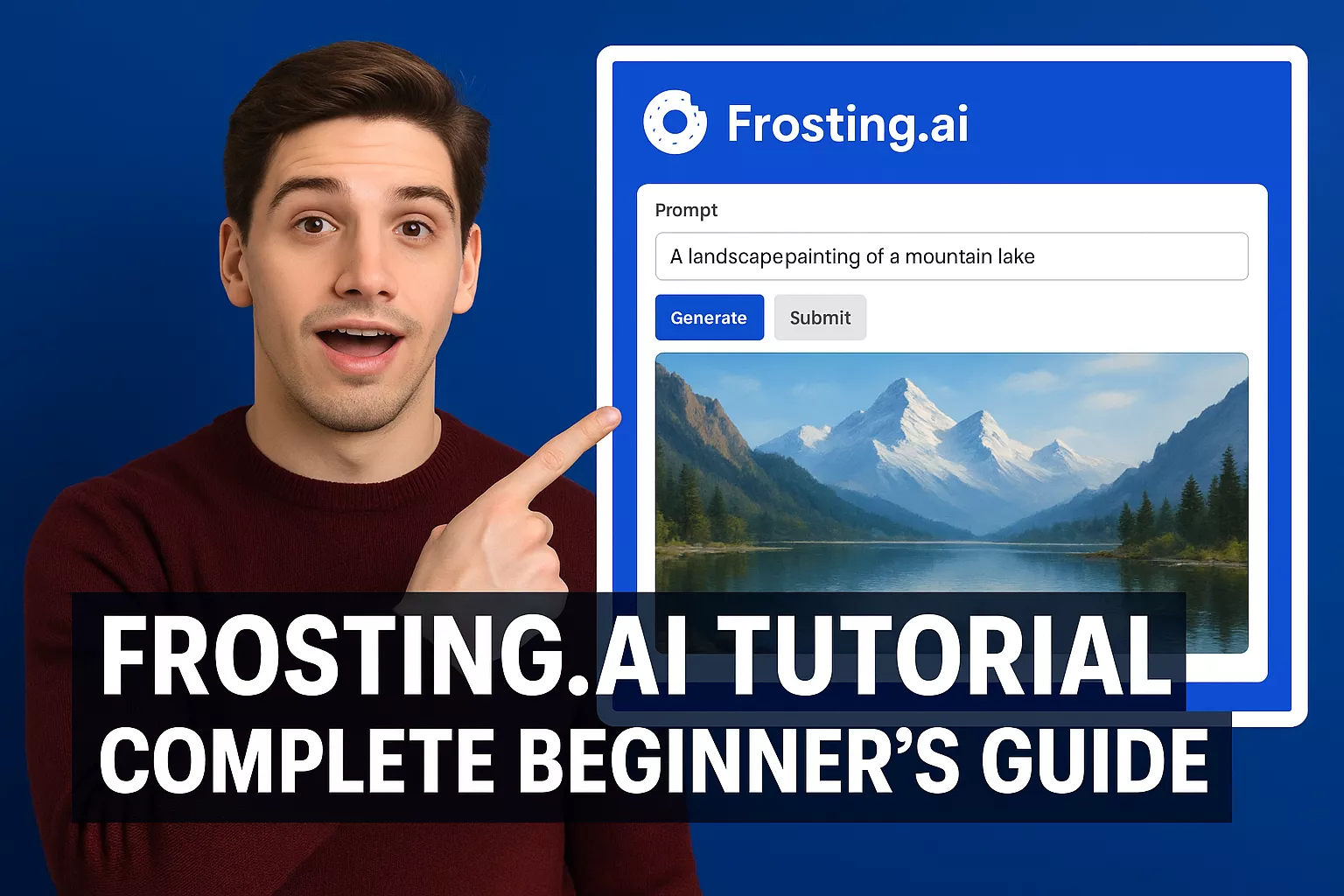
Frosting.ai is an AI-powered image generation platform that lets beginners create high-quality digital art, illustrations, and designs using simple text prompts – without any design or coding skills. In this complete 2026 beginner’s tutorial, you’ll learn exactly how Frosting.ai works, how to generate images step by step, how to write better prompts, and how to use its features to create professional visuals for social media, websites, marketing, and personal projects.
What is Frosting.ai?
Frosting.ai is a cloud-based generative artificial intelligence tool specifically designed for visual creation. Unlike the clunky command-line tools of the early 2020s, Frosting.ai operates entirely in your browser. It utilizes a highly tuned version of Stable Diffusion technology, optimized to understand natural language prompts and translate them into vivid, high-resolution images.
Why is it trending in 2026?
- Accessibility: No expensive graphics card (GPU) is required; all processing happens in the cloud.
- Speed: It generates standard images in under 10 seconds.
- Versatility: It excels at both Anime/Stylized art and Photorealism, two categories that often require separate tools.
- Control: It offers “guardrails” for beginners (simple toggles) and “steering wheels” for pros (negative prompts, seed control).
Getting Started: Account & Interface
Before we create art, let’s get you settled in.
Step 1: Creating Your Account
- Navigate to the official Frosting.ai website.
- Click the “Sign Up” or “Start Creating” button in the top right corner.
- You can register using your Google account (recommended for speed) or a standard email/password combination.
- Note: Upon signing up, you will typically receive a starter pack of “Credits” (usually 100 daily free credits) which allows you to generate images immediately without paying.
Step 2: The Dashboard Tour
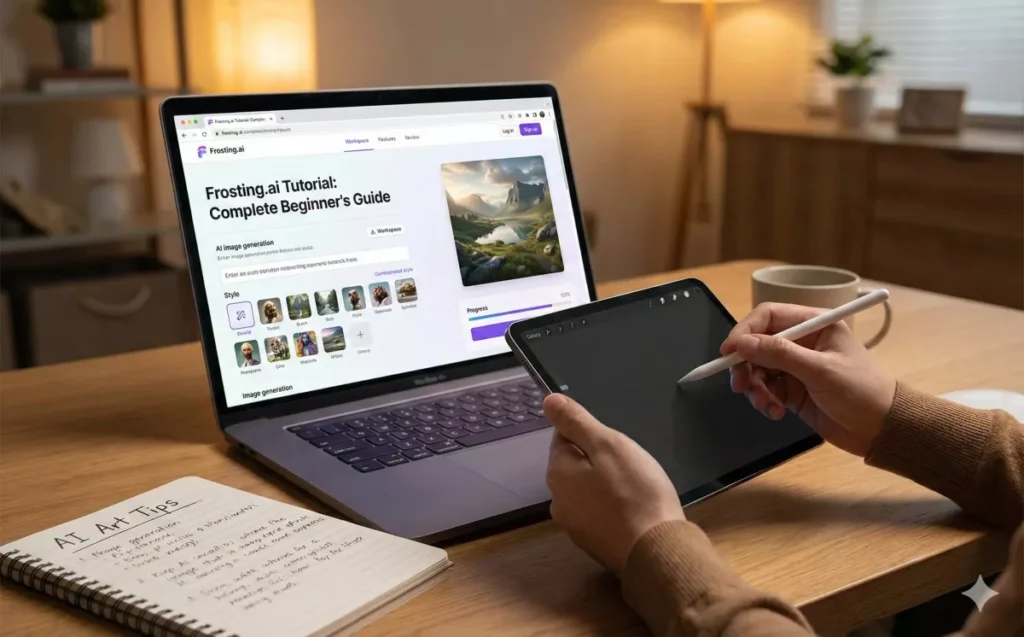
The interface is designed to be “clean first, complex second.” Here is what you will see:
- The Canvas (Center): This is where your generated images will appear.
- The Prompt Bar (Bottom or Top): The text box where you type your description (e.g., “A cyberpunk city with neon rain”).
- The Sidebar (Left): This contains your Settings and History.
- Models: Choose the “brain” of the AI (e.g., Realistic, Anime, 3D Render).
- Aspect Ratio: Select Square (1:1), Portrait (9:16), or Landscape (16:9).
- Advanced Settings: Hidden by default, this toggle reveals Negative Prompts and Steps.
Your First Generation: Step-by-Step
Let’s create your first image together. We will aim for something visually striking but simple.
Phase A: Selecting the Model
In the sidebar, look for a dropdown menu labeled “Model” or “Style”.
- Choose: Frosting Realism (or similar photorealistic option) for a photo-like result.
- Choose: Frosting Anime if you want a cartoon style.
Phase B: Writing the Prompt
Click into the Prompt Bar. We will use a formula: [Subject] + [Action/Context] + [Art Style] + [Lighting/Mood].
Input this:
“A close-up portrait of an astronaut on Mars, removing their helmet, sunset lighting, cinematic detailed 8k, dust particles floating, photorealistic.”
Phase C: Generating
- Check your Aspect Ratio. For a portrait, select 2:3 or 9:16.
- Hit the Generate button.
- Wait approximately 8–12 seconds.
Result: You should see a high-definition image of your astronaut. If the face looks distorted or the colors are wrong, don’t worry—that is where refinement comes in.
Core Features Explained
To move beyond basic images, you need to understand the tools under the hood.
Text-to-Image (T2I)
This is the standard mode we just used. The AI interprets your text literally. The key here is specificity.
- Bad Prompt: “A dog.”
- Good Prompt: “A golden retriever running through a field of lavender, wide angle shot, happy expression, sunny day.”
Image-to-Image (Img2Img) / Reference
This feature allows you to upload an existing photo to guide the AI.
- Use Case: You have a sketch of a logo and want to turn it into a shiny 3D render.
- How to use: Upload your sketch in the “Reference Image” slot. Set the “Influence Strength” (often a slider from 0 to 1).
- Low Strength (0.3): The AI barely changes your image.
- High Strength (0.8): The AI takes the idea of your image but changes the composition significantly.
Negative Prompts
This is one of the most powerful features in Frosting.ai. It tells the AI what not to include.
- Why use it? To fix bad hands, extra limbs, or blurry backgrounds.
- Common Negative Prompts: “blurry, low quality, extra fingers, mutated hands, watermark, text, bad anatomy, ugly, distorted.”
Upscaling
AI images are often generated at lower resolutions (e.g., 512×768) to save time. The Upscale button (usually a lightning bolt or ‘2x’ icon on the generated image) magically increases the resolution to 4k or higher, adding detail to textures like skin pores or fabric.
Advanced Prompt Engineering Guide
In 2026, “Prompt Engineering” is less about guessing magic words and more about clear communication. However, Frosting.ai has specific keywords it loves.
The “S.C.A.M.” Framework for Prompts
Use this acronym to build better prompts:
- S – Subject: Who or what is in the picture? (e.g., “A warrior princess”)
- C – Context: Where are they? (e.g., “Standing on a cliff edge during a storm”)
- A – Art Style: What does it look like? (e.g., “Oil painting by Van Gogh” or “Unreal Engine 5 Render”)
- M – Modifiers: Lighting and camera details. (e.g., “Volumetric lighting, bokeh, 85mm lens, sharp focus”)
Style Cheat Sheet
Copy and paste these tags to instantly change the vibe of your image:
| Style | Keywords to Add |
| Cyberpunk | Neon lights, chrome, rain, futuristic, high contrast, cyan and magenta |
| Fantasy | Intricate armor, magical glow, ethereal, D&D character art, digital painting |
| Photography | Raw photo, Fujifilm, 35mm, depth of field, natural lighting, hyperrealistic |
| Horror | Dark atmosphere, fog, unsettling, shadows, grime, muted colors |
Troubleshooting Common Issues
Even in 2026, AI isn’t perfect. Here is how to fix common glitches in Frosting.ai.
“The hands look weird!”
Solution: This is the classic AI struggle.
- Add
bad hands, missing fingers, extra fingersto your Negative Prompt. - Try to frame the image so hands are not the focus (e.g., “hands in pockets” or “portrait shot”).
” The face looks distorted.”
Solution: This usually happens when the subject is too far away.
- Use the keyword
close-uporportrait. - Use the “Face Fix” or “Restore Faces” toggle in the settings if available.
“The style isn’t right.”
Solution: You might be fighting the model.
- Check if you selected the Anime Model but typed a prompt for a Realistic Photo. Ensure your Model matches your Prompt.
- Increase the “Guidance Scale” (CFG Scale). This slider tells the AI how strictly to follow your text. Standard is 7. Crank it to 10-12 for stricter adherence.
Pricing and Plans (2026 Estimates)
Frosting.ai operates on a “Freemium” model. While prices fluctuate, here is the standard structure you can expect:
Free Tier
- Cost: $0
- Credits: ~100 per day (refreshes daily).
- Limitations: Slower generation speeds, ads, public gallery (everyone can see your art), limited access to the newest “Pro” models.
Planet Plan (Starter)
- Cost: ~$7 – $10 / month
- Credits: ~500 – 1000 daily.
- Perks: Private generation (stealth mode), no ads, faster server priority.
Nebula Plan (Pro)
- Cost: ~$25 – $30 / month
- Credits: Unlimited standard generations.
- Perks: Access to batch generation (create 4 images at once), higher resolution downloads, and early access to beta features like Video Generation.
Galaxy Plan (Agency)
- Cost: ~$60+ / month
- Perks: Commercial license for high-volume use, API access (for developers), and dedicated support.
Pro Tip: Stick to the Free Tier until you run out of credits three days in a row. That is the sign you are ready to upgrade.
Pros and Cons
To give you an unbiased view, here is where Frosting.ai shines and where it struggles.
Pros
- User Interface: Incredibly easy to navigate; you don’t need to be a tech wizard.
- Speed: One of the fastest generators on the market.
- Style Variety: Switches between Anime and Realism seamlessly.
- Reference Mode: The ability to upload your own sketches is a game-changer for artists.
Cons
- Consistency: Like all AI, generating the exact same character in different poses is difficult without advanced tweaking.
- Text Rendering: While better in 2026, it still struggles to render long sentences of text perfectly within an image (e.g., signs or book titles).
- Mobile Experience: The web interface is great on desktop but can be fiddly on smaller smartphone screens.
Is Frosting.ai Safe & Legal to Use?
Yes, Frosting.ai is safe to use for everyday content creation when used responsibly. The platform is designed with built-in safety measures to prevent misuse. However, users should follow a few important guidelines to stay compliant:
- Avoid generating copyrighted characters or trademarked content for commercial purposes.
- Do not create harmful, deceptive, or explicit material that violates platform policies.
- Always review and follow the licensing terms before using images in business or paid projects.
As of 2026, Frosting.ai continues to strengthen its content moderation systems and ethical AI standards to ensure a safer and more responsible creative environment for all users.
Frosting.ai Popular Use Cases
Frosting.ai is a versatile creative tool that finds practical applications across many industries. Below are the most common and high‑impact ways people and teams use it, with concrete examples, workflow tips, and small best‑practice notes to help you get results faster and more reliably.
i) Social Media Content
Frosting.ai is widely adopted by social creators and small marketing teams to produce eye‑catching visuals at scale. It’s especially useful when you need fresh assets quickly without hiring a designer.
- Instagram posts Use Frosting.ai to generate polished feed images that match your brand aesthetic. Prompt for consistent color palettes, typography suggestions, and composition (e.g., centered subject, negative space for text overlays). Export high‑resolution PNGs for crisp display.
- Reels thumbnails Create thumbnails that boost play rates by specifying expressive faces, bold contrast, and readable text areas. Lock the aspect ratio to 9:16 and leave space for the title so you can add text in a video editor.
- Pinterest graphics Generate tall, vertical images with strong focal points and layered textures. Ask for infographic‑style elements or step‑by‑step visuals to increase repins and clickthroughs.
- TikTok background visuals Produce stylized backdrops and animated stills for short videos. Request subtle motion-friendly textures or gradients that won’t distract from on‑screen talent.
Tip: Save a set of prompt templates for each platform to keep visual consistency and speed up batch creation.
ii) Blogging and SEO
Bloggers and content teams use Frosting.ai to create visuals that improve engagement and search performance.
- Featured images Generate unique hero images that reflect article themes and stand out in search results. Include keywords in the prompt to align imagery with the article topic.
- Infographics Ask Frosting.ai for simplified data visualizations or conceptual diagrams. Combine generated graphics with a lightweight editor to add exact numbers and labels.
- Concept illustrations Use the tool to visualize abstract ideas, metaphors, or process flows that are hard to photograph. These illustrations help readers understand complex topics and increase time on page.
Best practice: Pair generated images with descriptive alt text and filenames that include target keywords to help SEO.
iii) YouTube Thumbnails
Thumbnails are a major driver of clickthrough rate, and Frosting.ai helps creators test multiple thumbnail concepts quickly.
- Emotional facial expressions Specify the exact emotion you want—surprise, joy, shock—to create thumbnails that trigger curiosity.
- Bright colors Request saturated palettes and high contrast to make thumbnails pop in crowded feeds.
- Attention‑grabbing scenes Combine dramatic composition, props, and exaggerated poses to tell a story at a glance.
Workflow: Generate 6–10 variations per video, then A/B test or pick the highest‑impact option. Keep a consistent visual language across your channel for brand recognition.
iv) E‑Commerce and Advertising
Retailers and advertisers use Frosting.ai to prototype product visuals and craft ad creatives without a full photoshoot.
- Product mockups Create lifestyle or studio mockups to preview how a product looks in different settings. Use consistent lighting and perspective prompts for catalog cohesion.
- Banner ads Generate multiple ad concepts with different calls to action, color schemes, and focal points. Export in web‑optimized formats and sizes.
- Promotional creatives Produce seasonal or campaign‑specific visuals quickly—holiday themes, limited‑time offers, or flash sale banners.
Pro tip: Use the same seed or style preset across product images to maintain a unified look in your storefront and ad campaigns.
v) Book Covers and Digital Art
Authors, indie publishers, and digital artists leverage Frosting.ai to explore cover concepts and create striking artwork.
- Fantasy book covers Request epic compositions, atmospheric lighting, and symbolic elements that reflect the story’s themes. Provide genre cues and mood words to guide the style.
- Sci‑fi novel art Ask for futuristic cityscapes, alien landscapes, or tech motifs with precise color palettes and typography zones for title placement.
- Digital posters Generate high‑resolution poster art for events, promotions, or personal projects. Specify print dimensions and bleed areas when preparing for physical printing.
Creative note: Use iterative prompts—start broad to explore ideas, then refine the strongest concepts with more detail and higher resolution settings.
Frosting.ai vs Other AI Image Generators (Quick Comparison)
| Feature | Frosting.ai | Other AI Image Generators |
|---|---|---|
| User Interface | Very simple and beginner-friendly | Often complex and technical |
| Image Generation Speed | Fast and optimized | Varies, often slower |
| Prompt Accuracy | High accuracy and consistency | Inconsistent across platforms |
| Learning Curve | Very low (easy for anyone) | Medium to high |
| Controls for Beginners | Designed specifically for new users | Often built for advanced users |
| Pricing | Competitive and affordable | Frequently expensive or restrictive |
| Best For | Quick, high-quality results | Advanced experimental use |
Future Outlook: Beyond 2026
As we look further into the future, Frosting.ai is positioning itself not just as an image generator, but as a Creative Suite.
- Video Integration: Beta features suggest short 4-second video loops from your static images are coming soon.
- 3D Model Export: The ability to turn a 2D generated character into a downloadable .OBJ file for game design.
- Real-Time Canvas: Drawing on a canvas and seeing the AI update the image in real-time (Live Painting).
Final Verdict
Frosting.ai represents the “democratization” of art. It allows you to visualize thoughts instantly. For beginners, it is the perfect entry point—low cost, high reward, and endless fun. For professionals, it is a rapid prototyping tool that saves hours of concept work.
The best way to learn is to do. Go create your account, type in a wild idea, and see what the machine dreams up for you.
Frequently Asked Questions (FAQs)
1. Is Frosting.ai good for beginners?
Yes, Frosting.ai is an excellent choice for beginners. It is designed with a clean, simple interface that anyone can understand within minutes. You don’t need any prior experience in graphic design, AI tools, or technical software. Even if you are completely new to AI image generation, you can start creating professional-quality visuals just by typing simple text prompts.
2. Can I use Frosting.ai images for business or commercial use?
Yes, you can use Frosting.ai images for business purposes, but only if you are on a paid plan. Paid subscriptions usually come with commercial usage rights, which means you can legally use the generated images for websites, advertisements, social media marketing, product designs, book covers, and client projects. Always review the latest licensing terms to stay fully compliant.
3. Do I need a powerful computer to run Frosting.ai?
No, you don’t need a high-end computer at all. Frosting.ai works entirely on cloud-based servers, meaning all the heavy processing is done online. You can use it smoothly on a basic laptop, desktop, or even a tablet, as long as you have a stable internet connection.
4. Can Frosting.ai replace professional designers?
Frosting.ai is a powerful creative assistant, but it does not fully replace professional designers. It can handle repetitive design tasks, speed up concept creation, and help generate visual ideas quickly. However, human designers are still essential for branding strategy, originality, emotional design, client communication, and complex creative decisions.
5. Is Frosting.ai better than free AI image generation tools?
In most cases, yes. Frosting.ai typically delivers better image quality, faster generation speeds, more consistent results, and safer commercial licensing compared to many free AI tools. Free tools often come with image watermarks, limited usage, slower servers, and unclear copyright rules, while Frosting.ai offers a more reliable professional experience.