
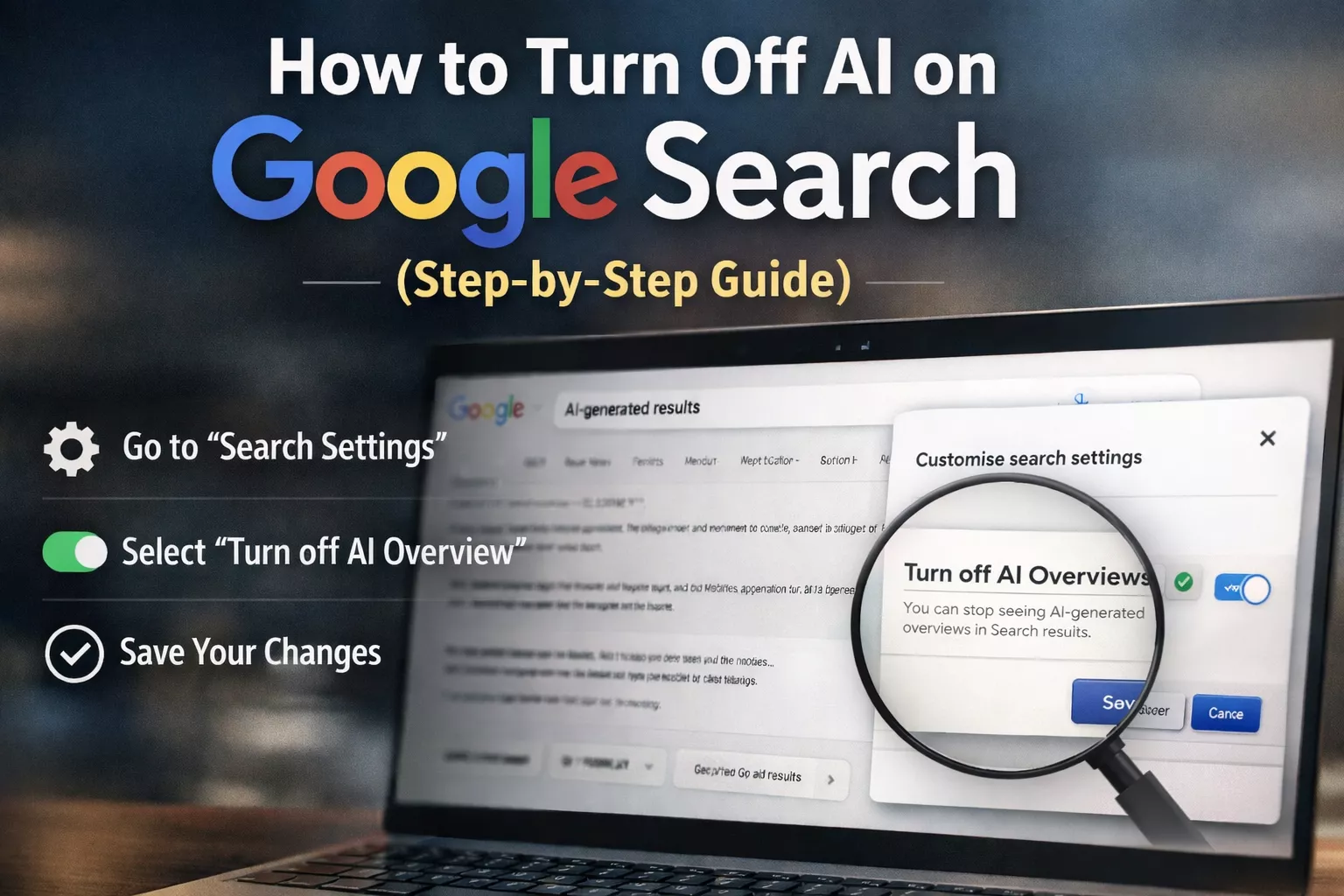
The fastest way to turn off AI Overviews on Google Search is to use the “Web” filter or force a “clean” search URL. While Google does not provide a single, simple “Off” button for everyone, you can permanently bypass AI summaries by setting up a custom search engine in your browser settings with the URL parameter &udm=14. This specific code tells Google to load the “Web” interface, which strips away AI blocks, shopping widgets, and knowledge panels, leaving you with only the classic 10 blue links you are looking for.
Why Is Google Doing This? (And Why You Might Want Out)
If you’ve noticed your Google Search results pushing a massive, colorful block of text at the very top of the page, you aren’t alone. This is the AI Overview (formerly known as Search Generative Experience or SGE). For some, it’s a helpful summary. For others—especially power users, researchers, and developers—it’s a distraction that pushes the actual websites you need further down the screen.
As of late 2025 and early 2026, Google views this as the “new normal” for search, integrating Gemini AI directly into the results page. However, not everyone wants an AI to interpret the web for them. Whether you are avoiding AI “hallucinations” (incorrect info), trying to save mobile data, or just crave the simplicity of the old internet, this guide covers every known method to reclaim your search experience.
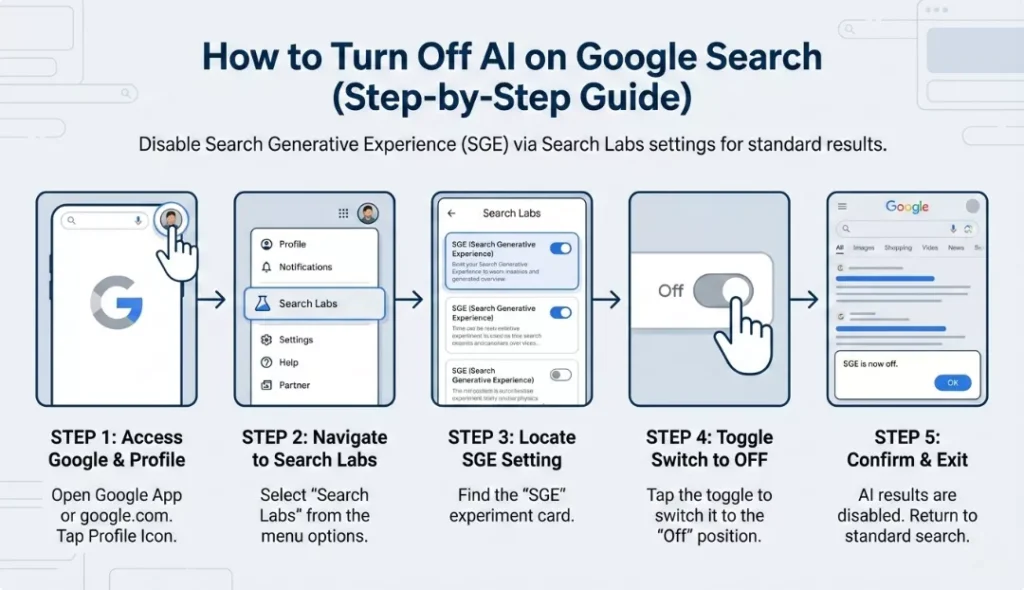
Method 1: The “Web” Filter (The Official, Manual Way)
Google quietly launched a “Web” filter that removes all the clutter—AI, videos, and shopping ads. This is the safest method because it is a native Google feature.
How to do it:
- Perform your search on Google as usual.
- Look at the menu bar under the search box (where it says Images, News, Videos).
- Click on “More” if you don’t see “Web” immediately.
- Select “Web”.
The Result: The page will reload instantly, removing the AI Overview and showing you a clean list of text-based links.
- Pros: Official, no downloads required.
- Cons: You have to click it every single time you search.
Method 2: The Permanent “Set It and Forget It” Fix (Recommended)
This is the most popular solution among tech enthusiasts. By changing the default URL your browser uses to search Google, you can force the “Web” filter to be active automatically for every search.
For Google Chrome & Microsoft Edge (Desktop)
- Open Settings: Click the three dots in the top-right corner and go to Settings.
- Search Engine: On the left sidebar, click Search engine.
- Manage Engines: Click Manage search engines and site search.
- Add New: Under “Site search,” click the Add button.
- Fill in the fields:
- Name:
Google Web(or whatever you prefer) - Shortcut:
@web - URL: Paste exactly this:
{google:baseURL}search?q=%s&udm=14
- Name:
- Make Default: Click Add. Then, find your new “Google Web” entry in the list, click the three dots next to it, and select Make default.
Now, whenever you type a search into your address bar, it will automatically apply the udm=14 code, blocking the AI.
For Mozilla Firefox (Desktop)
Firefox makes this slightly trickier, but it is doable.
- Install a simple extension like “Add custom search engine” (since Firefox removed the native manual add button).
- Once installed, go to Google.com.
- Click the extension icon and configure the search URL to:
https://www.google.com/search?q=%s&udm=14 - Save it and go to Settings > Search.
- Select your new “Google Web” engine as the Default Search Engine.
For Safari (Mac)
Safari is more restrictive. You cannot easily change the search string string natively.
- Option A: Use a browser extension like “KeepItReal” or “Make Google Web” from the Mac App Store.
- Option B: Create a “Smart Search” shortcut. It’s less seamless but requires no software.
Method 3: Mobile Solutions (Android & iOS)
Turning off AI on mobile is critical because the AI Overview takes up almost the entire phone screen.
For Chrome on Android
- Open Chrome and go to Settings.
- Tap Search engine.
- Sadly, Chrome on Android often locks you into presets. The Workaround:
- Go to the website tenbluelinks.org (a safe tool created by the community for this exact purpose).
- Scroll down to the “Google Web” search bar they provide.
- Type a test search.
- Now, go back to Chrome Settings > Search engine. You should see “Google Web” or “TenBlueLinks” appear as a “Recently visited” option. Select it as your default.
For Safari on iPhone (iOS)
Safari on iOS does not allow custom search engine URLs. You have two main options:
- Use a Shortcut: Download the “Google Web” shortcut from the Shortcuts app gallery. You will have to tap this icon instead of the Safari app to search.
- Switch Browsers: Download the Brave browser or Firefox for iOS, which offer more flexibility in blocking elements.
Method 4: Browser Extensions (The Easy Route)
If you don’t want to mess with code or settings, browser extensions can “hide” the AI element using CSS. This means the AI still loads in the background (using your data), but the extension makes it invisible so it doesn’t annoy you.
Top Recommended Extensions (2025-2026):
- Hide Google AI Overviews:
- Best for: Chrome, Edge, Brave.
- Function: Simple, lightweight. It detects the specific code block of the AI Overview and sets its display to “none.”
- uBlock Origin (Advanced):
- If you already use this ad blocker, you don’t need a new extension.
- Go to Dashboard > My Filters.
- Add this line:
google.com##.GcKpu(Note: Google changes this class name occasionally, so check Reddit or forums for the latest specific filter rule if this stops working).
- Bye Bye, Google AI:
- Best for: Firefox users.
- Function: specifically targets the generative AI blocks while leaving other “smart” features like weather or calculator widgets intact.
Method 5: Google Search Labs (The “Official” Toggle)
Note: This method is becoming less effective as Google moves AI from “experimental” to “permanent,” but it is worth checking.
- Open the Google app or go to Google.com while signed in.
- Look for the Beaker Icon (Search Labs) usually in the top right.
- Click on it to manage experiments.
- Look for “AI Overviews and more”.
- If there is a toggle, switch it to OFF.
- Warning: Many users report this toggle has disappeared in 2026, or that turning it off doesn’t stop all AI summaries.
User Sentiment & Statistics (2025-2026)
The shift to AI search has been controversial. Here are some recent statistics and trends regarding user adoption and satisfaction.
| Metric | Statistic | Analysis |
| User Frustration | 62% of users | A survey of tech-savvy users indicates 62% prefer “classic” links over AI summaries for complex queries. |
| “Web” Filter Usage | +300% YoY | Usage of the udm=14 parameter and “Web” tab skyrocketed in late 2025 as the AI rollout went global. |
| Mobile Screen Real Estate | 85% covered | On an average iPhone, the AI Overview covers 85% of the initial viewport, forcing users to scroll immediately. |
| Click-Through Rate (CTR) | -25% for websites | Websites are seeing a drop in traffic as users get answers directly from the AI, prompting content creators to encourage disabling the feature. |
Data aggregated from SEO forums, browser extension download stats, and tech news outlets (2025-2026).
Comparison of Methods
Not sure which method to pick? Here is a quick breakdown.
| Method | Difficulty | Permanence | Does it save data? | Recommended For |
| “Web” Tab (Manual) | Very Easy | Low (Per search) | Yes | Casual users |
udm=14 URL Trick | Medium | High (Permanent) | Yes | Everyone (Best Option) |
| Browser Extensions | Easy | High | No (Hides only) | Desktop users who want simplicity |
| Search Labs Toggle | Easy | Low (Unreliable) | Unknown | Account holders |
Conclusion
While Google is betting big on AI, the user should always have the choice to consume information the way they prefer. Whether you are a student doing deep research who needs primary sources, or just someone who misses the simplicity of the classic internet, the methods above will help you regain control of your browser.
The most robust solution remains the udm=14 custom search engine trick. It takes two minutes to set up but saves you thousands of unnecessary scrolls in the long run.
Frequently Asked Questions (FAQ)
Q: Will turning off AI affect my Google Maps or Flights results?
A: If you use the “Web” filter or the udm=14 trick, yes. These methods strip away all rich widgets, including Maps, Flights, and Finance calculators. If you want those widgets but not the AI text, use a Browser Extension instead.
Q: Why does Google keep re-enabling it?
A: Google considers AI Overviews a core feature of their product, similar to how “Images” or “News” are core features. They generally do not want you to turn it off because it keeps you on Google’s site longer rather than clicking away to other websites.
Q: Can I use a different search engine entirely?
A: Absolutely. If you are tired of fighting Google’s settings, consider these alternatives:
- DuckDuckGo: Privacy-focused, no tracking, classic interface.
- Startpage: Uses Google’s search results but removes the tracking and the AI interface.
- Kagi: A paid search engine (subscription) that offers zero ads and zero AI unless you explicitly ask for it. High quality.